Secure endpoints. Better user experience.

Intune Management
Endpoint Security
User Experience
Modern Workplace

Category: Security

Everything security

  • One big Intune policy or many small ones?

    Some environments have a few large configuration policies with a lot of settings in each. Others split almost everything into separate policies.

    I’ve worked with both, and honestly, neither approach is automatically right or wrong. The important question is when settings should stay together and when it makes sense to split them.

    The short version: keep settings together when they belong together, serve the same purpose and share the same assignment. Split them when one of those things changes.

    For me, it’s less about how many settings a policy contains and more about how I expect to manage it later.

    Topics in this post

    • The policy size question
    • Why large Intune policies are tempting
    • So should you create many small policies instead?
    • How I decide when to split a policy
    • Think about assignments
    • A simple rule I use
    • Naming convention
    • My take
    • Useful links

    The policy size question

    This question isn’t new or unique to Intune. We have been having similar discussions for years with Group Policy, Configuration Manager and now Intune.

    There are benefits to both approaches, and unfortunately there isn’t a simple answer. If you came here looking for the ultimate recommendation, I’m sorry. But hopefully we can get a bit closer to answering the question:

    Should I create one large policy with many settings, or split the configuration into several smaller policies?

    Why large Intune policies are tempting

    Large policies mean fewer objects in Intune, fewer assignments and more settings kept in one place. They are also easier to set up when initially building the environment. But for me, this is where the trouble starts. Let me give you an example.

    Let’s take Edge settings as an example. We create one large policy for Microsoft Edge that includes security settings, personalization, start page, sync options, favorites and so on. This works well until we need different settings based on persona or department.

    To solve this, many customers I talk to create exclusions for the original Edge policy, duplicate the policy and then change the settings needed for that specific use case.

    Do you see the problem?

    The real problem isn’t just having more policies. It’s having multiple copies of the same configuration that can slowly start to drift apart. A setting gets changed in one policy but not the other, and suddenly two policies that were supposed to be almost identical no longer are.

    So should you create many small policies instead?

    Not always.

    One benefit is that smaller policies can make things easier, especially when you are troubleshooting or need different assignments.

    But I have also seen environments where this has gone too far.

    You start with a good idea of separating things, and after a while you have so many policies that it becomes difficult to understand what is actually configuring the device.

    Every policy becomes another object to name, assign and troubleshoot. If five settings always belong together, have the same assignment and are managed as one configuration, splitting them into five separate policies doesn’t necessarily give you anything. It can just create more objects to manage.

    Personally, I don’t think there is anything wrong with having several settings in the same policy. But there is one thing that is always in the back of my mind:

    Do these settings really belong together?

    For me, the number of settings isn’t really the important part. It’s about finding a good balance between keeping a clear overview and having enough flexibility to adapt the configuration later.

    How I decide when to split a policy

    My approach is to split policies based on the purpose of the configuration. Let’s take Edge as an example again. I usually split the configuration into logical areas and then make the specific purpose clear in the name. For example:

    Windows – Edge – Security – Restrictions
    Windows – Edge – Security – Add-ons
    Windows – Edge – Personalization – Startup
    Windows – Edge – Personalization – Favorites
    Windows – Edge – Personalization – Sync

    By splitting the configuration like this and sticking to a consistent naming convention, it’s easier to change or duplicate a specific part when needed without affecting everything else. The policy names also become almost self-documenting.

    Troubleshooting is another reason I prefer smaller, logical policies over one large policy. When something doesn’t behave as expected, one of the first things I want to know is which policy is responsible.

    If all the Edge settings live in one large policy, I need to dig through it to find the setting that matters.

    If the configuration is split by function, the policy name already points me in the right direction. A problem with the start page leads me to Personalization – Startup, while I can leave the security policies alone.

    Think about assignments

    Another thing I consider when deciding whether settings should stay together is the assignment.

    If two groups of settings always target the same users or devices, keeping them together might make perfect sense. A good example could be the main security settings for Edge. But if I can already see that one part of the configuration may need a different assignment later, that’s usually a good reason for me to separate it.

    For me, the assignment is often a better reason to split a policy than the number of settings in it.

    Assignment filters can also help make targeting more flexible without creating additional groups. I’ve written more about how I use them in Assignment Filters in Microsoft Intune: Why They Matter More Than Ever.

    A simple rule I use

    When I’m deciding whether settings should stay in the same policy, I usually ask myself three questions:

    1. Do they serve the same purpose?
    Settings that are part of the same configuration or function usually make sense together.

    2. Do they have the same assignment?
    If some settings need to target different users or devices, I would normally split them.

    3. Would I want to change or create an exception for them separately?
    If the answer is yes, separating them now can save me from duplicating a large policy later.

    That doesn’t mean I try to predict every possible exception.
    If I did, I would probably end up with far too many policies. I usually separate things when there is a realistic reason why the assignment or configuration might need to change independently.

    So my rule is pretty simple:

    Same purpose + same assignment + managed together = keep them together.

    Different purpose, assignment or exception = consider splitting them.

    Naming convention

    Over the years working with Intune, my view on naming conventions has changed quite a bit. And when working in customer environments, it’s not always up to me to decide how things should be named.

    But one thing has always been important to me:

    The name should tell us, as administrators, what the policy does without having to open it.

    I normally like names that roughly follow this structure:

    Platform – Product/Area – Purpose – Configuration

    For example:

    Windows – Edge – Security – Restrictions
    Windows – Edge – Personalization – Favorites

    I’m not saying this exact naming convention is right for every environment. The important part is that it is predictable.

    If I have to open a policy called Windows Policy 01 to understand what it does, the name isn’t helping me very much.

    This becomes even more important when you start splitting settings into smaller policies. More policies mean more names to keep track of, so a simple and predictable naming convention becomes essential.

    My take

    I don’t think the goal should be to have as few policies as possible, and I don’t think creating a separate policy for every setting is the answer either.

    My approach is pretty simple: group settings that belong together, serve the same purpose and are likely to be managed and assigned together.

    If the purpose, assignment or exception requirements change, I start thinking about splitting the policy.

    There is no magic number of settings that makes an Intune policy too large. A policy with 50 settings that all belong together can make more sense than five policies with 10 settings each.

    In the end, I would rather manage a few more clearly named policies than start duplicating large policies every time I need an exception.

    Structure policies around how you manage them, not around how many settings they contain.

    How do you structure your policies?

    Leave a comment below!

    Useful links

    Device configuration – settings catalog – Microsoft Learn

    Intune fundamentals filters overview – Microsoft Learn

    Intune fundamentals filters performance-recommendations – Microsoft Learn

  • 5 Things I Always Review in a Microsoft Intune Environment

    5 Things I Always Review in a Microsoft Intune Environment

    Microsoft Intune environments tend to grow and become more complex over time. Policies are added, security requirements change, exceptions are created, and sometimes configurations stay around simply because they still work. But working does not always mean that the configuration still makes sense.

    When I review an existing Intune environment, there are a few areas I think are always worth another look. Let’s dive in!

    Topics in the post:

    • Device compliance
    • Security baselines
    • Assignments
    • Windows Update
    • Local administrator access
    • My take
    • Quick Review Checklist
    • Useful links

    Before We Start

    Intune is not something you configure once and then forget about. Microsoft keeps adding capabilities, security requirements change, and the organization itself changes.
    A configuration that made perfect sense two years ago may not be the choice you would make today.

    A simple question I like to ask is:
    “If we were building this Intune environment today, would we configure it the same way?”
    If the answer is no, it might be time to revisit it.

    1. Device Compliance

    Start with a simple question: What does a compliant device actually mean in your environment?
    Review what makes a device compliant or non-compliant and whether those requirements still match what you expect from a managed device.

    I would also look at how compliance is used with Conditional Access. A compliance setting can look perfectly reasonable in Intune, but once it affects access to Microsoft 365 and other resources, the impact can be much bigger.

    Think about the complete flow:

    Device → Compliance → Conditional Access → User

    And don’t forget the user experience. If a device becomes non-compliant, does the user understand what happened and what they need to do?
    Related: Client driven compliance evaluation

    2. Security Baselines

    I like security baselines and see them as a good starting point for securing Windows devices. But they should not be something you deploy and then forget about.

    Look at which baseline you are using, what you have changed from Microsoft’s defaults, and why. Most importantly, are those exceptions still needed?

    Are some of the same settings also configured through Settings Catalog or other Endpoint Security policies?

    As I discussed in my Windows 11 26H2 Security Baseline article, I don’t think the important question is whether security baselines are good or bad. It is whether you understand what they are changing and why.

    3. Assignments

    Assignments can become surprisingly complicated over time.

    Groups get added, exclusions are created and policies that originally targeted a small number of devices suddenly have several different assignments.

    This is where I would review:

    • User vs. device assignments
    • Old groups and exclusions
    • Broad assignments
    • Assignment filters
    • Policies targeting the same devices

    One question usually tells you quite a lot:
    Can you easily explain why a specific device receives a specific policy? If the answer requires investigating several groups, exclusions and overlapping policies, there may be room to simplify.

    Check my post Assignment Filters in Microsoft Intune: Why They Matter More Than Ever – EndpointExperience for a deep dive.

    4. Windows Update

    Windows Update is another area I would revisit regularly.

    Do you still need all your deployment rings?

    Do the deadlines make sense?
    Is your pilot group actually being used as a pilot, or has it simply become another deployment ring?
    And if you’re maintaining a complex update configuration manually, is there a reason not to consider Windows Autopatch?

    Keeping devices updated and secure is important, but users should also have a predictable update and restart experience.

    5. Local Administrator Access

    Finally, I would review local administrator access.

    Do you still have users with local administrator rights, and if so, why? Could Windows LAPS or Endpoint Privilege Management help you reduce the need for permanent local administrator rights?

    There may be completely valid reasons, but do those reasons still exist today? Don’t be afraid to challenge old exceptions. If the reason is simply “this application needs local admin”, it might be worth testing whether that is still actually true.

    Look at the Environment as a Whole

    This is probably the most important part.
    Don’t review these areas completely independently.

    Security baselines, configuration profiles, compliance, Conditional Access and Windows Update all come together on the same device.
    Individually, every policy might look perfectly reasonable. Together, they may create unnecessary complexity or a poor user experience.

    For me, good endpoint management is about finding the right balance between security, manageability and user experience.

    My take

    I don’t recommend changing configurations just because Microsoft introduces a newer way of doing something.
    If something works and there is a good reason for it, keep it.
    But revisit the decisions behind your configuration from time to time. Remove exceptions that are no longer needed, simplify assignments where possible, and document why important decisions have been made.
    You should be able to explain not only what is configured in Intune, but also why. And from time to time, it’s worth challenging whether those decisions still make sense.

    Quick Review Checklist:

    ✅Device compliance: Do compliance requirements still define a trusted device?

    ✅Security baselines: Are exceptions still justified?

    ✅Assignments: Can you explain why each device receives its policies?

    ✅Windows Update: Are rings, deadlines and pilots still serving a purpose?

    ✅Local administrator access: Is permanent administrator access still necessary?

    Useful Links

  • Windows 11 26H2 Security Baseline: What Changed—and Should You Use It?

    In this post, we’ll explore Windows security baselines, what changed in the Windows 11 26H2 baseline, how to deploy it in Intune, and whether you should use security baselines at all.

    Topics in the post:

    • Security baselines for Windows in Intune
    • What’s new in the Windows 11 26H2 Security Baseline
    • How to deploy it in Intune
    • Should you even use security baselines?
    • My recommendation
    • Takeaway
    • Useful links

    Before We Discuss the 26H2 Baseline, Let’s Talk About Security Baselines

    If you’ve worked with Microsoft Intune for any length of time, you’ve probably encountered Security Baselines.
    Some organizations deploy them almost immediately, while others avoid them completely and build everything through the Settings Catalog.

    Microsoft describes Security Baselines as a collection of recommended security settings based on input from security engineers, product teams, partners, and customers.
    Their purpose is simple: provide a tested and broadly accepted security starting point instead of expecting administrators to evaluate thousands of individual Windows configuration options on their own.

    In theory, that sounds like an easy decision.
    In practice, it’s often more complicated.

    Should you deploy Microsoft’s recommendations exactly as provided? Should you customize them? Or should you use them primarily as a reference when building your own configuration strategy?

    That’s why every new Security Baseline release is interesting.

    The real value is understanding why those changes were made and deciding whether they belong in your environment.
    With that in mind, let’s review what’s new.

    What’s new in the Windows 11 26H2 Security Baseline?

    Microsoft has released version 2 of the baseline package to reflect the general availability of Administrator Protection. Organizations should therefore review and test the Administrator Protection configuration before broader deployment.

    Security PolicyChange SummaryWhat to test
    Printer\Configure Windows Ready Print driver rankingConfigured as “Enabled” to reduce reliance on third-party print drivers in the stack, narrowing the overall print driver attack surface.Specialist printers and vendor-specific functionality
    Internet Explorer\Internet Control Panel\Advanced Page\Turn off encryption supportUpdated from TLS 1.1 and TLS 1.2 to TLS 1.2 and TLS 1.3 to align with current security standards.Legacy applications, proxies, and internal services
    User Account Control: Configure type of Admin Approval ModeConfigured as “Admin Approval Mode with Administrator protection” to enable Administrator protection.Elevation workflows, installers, support tools, and OS prerequisites
    User Account Control: Behavior of the elevation prompt for administrators running with Administrator protectionConfigured as “Prompt for credentials on the secure desktop” to require credential verification for administrative elevation.Elevation workflows, installers, support tools, and OS prerequisites

    What this means

    Administrator Protection

    Administrator protection is a platform security feature in Windows 11 designed to ensure users run with the least privilege needed, elevating to admin rights only when necessary and only with the user’s explicit approval. The security baselines include settings that enable Administrator protection. More information can be found here Administrator protection.

    Printing compatibility

    Windows Ready Print is designed to reduce reliance on vendor-supplied drivers. When this policy is enabled, Windows prioritizes the Windows Ready Print class driver over a vendor driver when installing a printer that supports IPP.

    TLS change

    The setting “Turn off encryption support” has changed to allow only TLS 1.2 and TLS 1.3.
    Previous baseline releases permitted TLS 1.1 and TLS 1.2.
    TLS 1.1 is now considered obsolete and is no longer recommended for enterprise environments.

    Now that we understand what has changed, let’s look at how to deploy it.

    How to deploy the new baseline in Intune

    In the Microsoft Intune admin center, go to Endpoint security > Security baselines > Security Baseline for Windows 10 and later.
    From here, you can migrate an existing profile or create a new 26H2 baseline.

    Before you begin: document existing assignments and exceptions, export or record the current configuration, identify overlapping Settings Catalog or legacy policies, and define a representative pilot group. This gives you a rollback reference and makes conflicts easier to investigate.

    Option 1: Migrate an existing baseline

    1. Open the existing baseline profile and review its current settings, assignments, exclusions, and known exceptions.
    2. Select Update policy, choose whether to retain your existing customizations or use the new baseline defaults, and create the updated profile.
    3. Give the updated profile a name that includes the baseline version and pilot status.
    4. Compare the updated configuration with both the previous profile and Microsoft’s 26H2 defaults.
    5. Assign the updated profile to a small, representative pilot group.
    6. Monitor deployment status, conflicts, endpoint behavior, printing, application compatibility, elevation workflows, and support feedback.
    7. Expand the rollout in stages after the pilot succeeds. Keep the previous profile available as a rollback reference until the new profile is stable.
    8. Retire the old profile only after its assignments have been removed and the replacement has been validated.

    Option 2: Create a new 26H2 baseline

    Use this approach for a new deployment or when you want a clean configuration that does not carry forward previous customizations.

    1. Select Create policy under Security Baseline for Windows 10 and later.
    2. Enter a descriptive name and notes that identify the 26H2 version, intended scope, owner, and pilot phase.
    3. Review every setting rather than accepting the baseline blindly. Document any deviation from Microsoft’s defaults and the reason for it.
    4. Check for overlap with Settings Catalog profiles, endpoint security policies, configuration profiles, scripts, and legacy Group Policy.
    5. Assign the profile to a representative pilot group.
    6. Review Intune reporting and validate the user experience.
    7. Roll out in controlled stages.
    8. Document the final configuration, approved exceptions, assignments, ownership, and rollback plan.

    The bigger question: Should you even use security baselines?

    This is where the real discussion begins.

    Microsoft positions Security Baselines as a tested and recommended set of security configurations designed to provide a secure starting point for well-managed organizations. The idea is simple: instead of evaluating thousands of settings individually, organizations can start from Microsoft’s recommended baseline and build from there.

    There are several reasons why Security Baselines remain popular among IT and security teams:

    • Microsoft’s security teams have already done much of the research and validation.
    • They provide a fast path to improving security posture.
    • They establish a strong minimum security standard.
    • They are particularly useful for small and medium-sized organizations with limited resources.
    • They make it easier to demonstrate alignment with Microsoft’s security recommendations.

    At the same time, Security Baselines are not without drawbacks:

    • You give up some control over individual configuration decisions.
    • Troubleshooting can become more difficult when settings are inherited from multiple sources.
    • There is a risk of deploying configurations that the organization doesn’t fully understand.
    • Conflicts can arise with existing Settings Catalog profiles, custom policies, or legacy configurations.

    For me, the debate isn’t whether Security Baselines are good or bad.

    The more important question is:

    Do you understand what the baseline is changing in your environment, and why?

    My recommendation

    Personally, I have always seen value in security baselines.
    Without them, I do not think many organizations would configure the full set of recommended security settings.
    My recommendation is therefore to use the baseline for what it is intended to be: a broadly accepted starting point for securing Windows devices. Do not deploy it blindly.
    Start with a representative pilot group, understand the impact of the settings, document any exceptions, and adjust the configuration to fit your environment.

    Takeaway

    The Windows 11 26H2 Security Baseline introduces a small number of changes, but several can have a noticeable operational impact. Use the baseline as Microsoft’s recommended starting point—not as a substitute for testing, documentation, and understanding your own environment.

    Useful links

    Microsoft Security Baselines Blog – Windows 11, version 26H2 security baseline

    Microsoft Learn – Security baselines guide

    Microsoft Learn – Administrator protection

    Microsoft Learn – Default configuration of Intune’s Windows security baselines

  • Microsoft Edge Management Service: Extension Monitoring, Policies, and Updates

    Managing Microsoft Edge with Intune gives admins strong configuration control, but it does not always provide the full visibility needed into browser extensions, update status, and cross-platform browser management. The Microsoft Edge management service helps close that gap by giving admins a centralized place to monitor extensions, review policies, track update status, and manage scenarios that are not always covered by Intune alone. In this blog post, I’ll walk through where the service adds value, how to get started, and when I recommend using Cloud policies instead of Intune policies.

    This blog post will cover:

    • General prerequisites
    • How to get started with the Microsoft Edge management service
    • Configuration policies – Cloud and Intune
    • Edge extensions
    • Edge updates
    • Other features in the Microsoft Edge management service
    • My take
    • Useful links

    General prerequisites

    • You must be a Microsoft Edge Administrator (if you follow least privilege) or Global admin to access the experience in Microsoft 365 Admin Center.
    • Enable the Microsoft Edge management service in the Microsoft 365 admin center.
    • Microsoft Edge 115.0.1901.7 or greater installed.
    • Users must be logged into Microsoft Edge.

    How to use the Microsoft Edge management service

    Let’s start with the basics

    You can find the Microsoft Edge management service in the Microsoft 365 admin center(https://admin.cloud.microsoft)> Settings > Microsoft Edge.

    To start using the service, select Enable then select what services should be enabled and select Save.

    Configuration policies

    You can monitor existing Microsoft Edge policies and create new policies directly from the dashboard. There are two available policy types: Cloud policies and Intune policies.

    Let’s walk through the differences, when to use each option, and how policy conflicts are handled.

    Cloud policies

    Cloud policies are created and managed in the Microsoft Edge management service.

    Depending on the setting you configure, Cloud policies can apply Microsoft Edge settings across supported platforms, including Windows Server.

    Why would you use Cloud policies instead of Intune policies?

    • Configure Microsoft Edge on supported platforms outside your Intune-managed Windows estate, including Windows Server.
    • Prioritization: Configuration policies with conflicting settings will take the value of the policy with the highest priority.
    • Extension requests: Admins will be able to view the extensions that users have requested and take action to approve or deny these requests.
    • Organization branding: Admins will be able to apply their organization’s branding to customize the look and feel of the browser.
    • Manage scenarios where the operating system is not supported by Intune or where devices are not enrolled in Intune.

    Below is an example of policies in the Microsoft Edge management service. Notice the priority, policy type, scope, and platform columns. Together, these give you a useful overview of where each policy will apply.

    Intune policies

    A configuration policy created as an Intune policy is available in both the Microsoft Edge management service and the Intune admin center. Policy details sync between the two experiences, with some limitations:

    • Scope tags: Cannot be set in the dashboard, only in Intune.
    • Detailed assignment: Policies created in the Microsoft Edge management service can only be assigned to target user groups. If created in Intune, the configuration policy can target devices and exclude specific user groups. Assignment filters can also be applied when the policy is created in the Intune admin center.
    • Role-based access control (RBAC): Can only be set via Intune.

    My recommendation is to continue creating Microsoft Edge policies for enrolled Windows devices in Intune. For other supported platforms, Windows Server, or devices that are not enrolled in Intune, Cloud policies can be a great complement.

    When to use what

    Use Intune policies when…Use Cloud policies when…
    You manage enrolled Windows devices and need device targeting, scope tags, RBAC, assignment filters, and full Intune management control.You need to manage supported platforms or scenarios not fully covered by Intune, such as Windows Server or devices that are not enrolled in Intune.

    Policy conflicts

    Any policies you apply with the Microsoft Edge management service will be overridden if they conflict with an existing Group Policy Object (GPO) or Mobile Device Management (MDM) policy that is set on the device.

    Edge extensions

    Previously, if you wanted broad visibility into browser extensions, Microsoft Defender Vulnerability Management was often part of that conversation. In practice, that meant either Microsoft Defender Vulnerability Management standalone licensing or the Microsoft Defender Vulnerability Management add-on if you were already using Microsoft Defender for Endpoint Plan 2.

    With the Microsoft Edge management service, admins can now monitor and manage extensions from a more centralized experience. This is a big step forward for both security and user experience.

    What can admins do with extensions in the Microsoft Edge management service?

    • Extensions monitoring: Monitor installed extensions.
    • Manage extension requests: Extensions requested by your users appear in the Microsoft Edge management service. You can allow users to request blocked extensions.
    • Add extensions: Microsoft Edge Add-ons store or specify an external extension ID.
    • Manage permissions policy: Allow, block, force install, normal install (installed but users can disable it).
    • Manage extension permissions: Customize permissions by choosing which permissions are not allowed.
    • Manage settings for all extensions: Configure allowed or blocked hosts, install sources, and more.

    For full details, check the links under “Useful links”.

    This is advanced centralized management of Microsoft Edge extensions. For this capability alone, the Microsoft Edge management service is worth enabling and exploring.

    Edge updates

    To monitor Microsoft Edge versions, you need to enable version monitoring. When this is enabled, Windows devices send update status to the dashboard.

    You can monitor which devices are up to date, which devices have updates available, and which devices have recommended updates. You can also monitor channel status.

    Keeping Microsoft Edge up to date is important from a security perspective, but it also helps users get access to new functionality and improvements faster.

    For devices that are out of date, you can choose one of the following actions to keep those browsers up to date.

    Force auto restart when device is idle: This automatically restarts the users’ browsers to apply the latest update when their device is detected as idle (20 minutes of no user input). Users are notified, and their tabs will be restored.

    • Recommend restart: This action sends a notification to the user to restart their browser to apply the latest update.
      No action will be taken on their behalf, and users may choose whether to act upon the notification.

    If a device has not sent data for 30 days, then the update information for that device will be deleted from the Edge management service.

    Other features in the Microsoft Edge management service

    Besides the topics covered in this blog post, the Microsoft Edge management service also lets you manage several other areas, including:

    Manage site lists – Create lists of websites and specify which browser or browser mode should open each site.

    Manage Edge connectors – Configure and manage device trust, reporting, and data loss prevention connectors to extend the value of your security solutions in Microsoft Edge for Business.

    Manage Copilot in Edge – Manage how users in your organization interact with Microsoft 365 Copilot Chat and related AI-powered experiences in Microsoft Edge.

    Sync Microsoft Purview policies – Sync Edge settings with Microsoft Purview policies that target unmanaged GenAI apps in Microsoft Edge for Business.

    My take

    Start using the Microsoft Edge management service today. There are no real downsides to getting more visibility into Microsoft Edge in your environment, especially when the service gives you insights that are hard to get elsewhere. My recommendation is to plan your organization’s extension strategy, use the Microsoft Edge management service to gain visibility, and then enforce what should be allowed or blocked. For configuration, I would still keep Intune as the primary management plane for enrolled Windows devices, but use Cloud policies for supported platforms and scenarios that are not covered by Intune.

    I’m really happy to see this capability available, and I’m sure I’ll revisit this topic as the Microsoft Edge management service continues to evolve.

    Useful links

    Microsoft Learn – Monitoring dashboard

    Microsoft Learn – Edge extensions monitoring

    Microsoft Learn – Activate your DLP policy in Microsoft Edge

    Microsoft Learn – Connectors Overview

  • Intune Client-Driven Compliance Evaluation

    Compliance status in Microsoft Intune is often treated as a simple yes-or-no value, but in practice it directly affect user access, support workload, and the overall endpoint experience.
    When a device has been remediated but compliance has not yet refreshed, users may still be blocked even though the issue is already resolved.

    The challenge with compliance today

    If you work with Microsoft Intune, you’ve probably experienced this scenario:

    After successfully fixing compliance issue. Perhaps BitLocker is enabled, Defender protections are restored, or a required security configuration is corrected. The device is now compliant, but Intune and Conditional Access don’t immediately know that.

    Administrators and users often end up waiting for the next compliance evaluation cycle or trigger it manually from company portal before the updated state is reflected in Intune and Entra.

    This delay creates unnecessary friction and leads to:

    • Users being blocked from accessing Microsoft 365 resources
    • The helpdesk may receive calls and spend time forcing syncs
    • Administrators struggle with compliance troubleshooting
    • A overall worse user experience

    What Microsoft is changing

    Microsoft has announced a new upcoming capability called Client-Driven Compliance Evaluation for supported Windows devices.

    “Microsoft Intune will introduce client-driven compliance evaluation for Windows devices to reduce delays in compliance reporting. Supported devices will detect important state changes locally and proactively request a compliance re-evaluation when it matters, instead of waiting for the next scheduled check-in. As an admin, you’ll see faster updates for remediation, reporting, and access decisions. This capability will roll out in preview for Windows devices.”

    This shifts compliance from a purely schedule-driven model toward a more event-driven approach.

    Why this matters

    For many organizations, compliance is more than reporting.

    Compliance status often drives:

    • Access to Microsoft 365 resources
    • Device remediation workflows
    • Security posture monitoring
    • Executive reporting

    How it works

    Microsoft has only provided a high-level description of the capability so far.

    The current documentation confirms that:

    1. The Windows device detects certain local state changes.
    2. The device requests a compliance re-evaluation.
    3. Intune receives the updated compliance information.
    4. Reporting and access decisions are updated faster.

    Supported Compliance Signals

    Microsoft has not yet published which compliance signals will trigger an immediate re-evaluation. Until more details become available, it remains unclear which compliance settings will participate in this new process.

    Potential impact on Conditional Access

    One of the most interesting aspects of this feature could be its impact on Conditional Access.

    If compliance evaluations can be triggered immediately following remediation, access restoration could become significantly faster.

    Questions that remain unanswered

    Although Microsoft has confirmed the capability, several important details remain unknown.

    Which Windows versions are supported?

    Microsoft has not yet published the supported Windows versions or build requirements.

    Is Intune Management Extension involved?

    At the time of writing, Microsoft has not documented whether the feature depends on:

    • Intune Management Extension
    • Windows MDM components
    • A new compliance agent architecture

    Will Custom Compliance be included?

    Many organizations now use Custom Compliance for advanced validation scenarios.

    Microsoft has not yet stated whether custom compliance scripts and JSON-based compliance policies will trigger client-driven re-evaluation events.

    What about Microsoft Defender for Endpoint risk signals?

    This is potentially one of the most important unanswered questions.

    Organizations frequently use risk-based Conditional Access and Defender compliance signals.

    It remains unclear whether device risk level changes, Defender alerts, or exposure score updates will trigger a client-driven compliance re-evaluation.

    What Endpoint Administrators Should Watch For

    As soon as the feature is released, I will publish a follow-up article. Until then, I recommend tracking the following resources as Microsoft expands the public documentation:

    In development – Microsoft Intune

    What’s new in Microsoft Intune

    Microsoft 365 Roadmap

    My Take

    The biggest benefit of this feature isn’t faster compliance reporting—it’s faster recovery.

    Users don’t care when the next compliance cycle runs; they care about getting access back after fixing an issue.
    If Client-Driven Compliance Evaluation can reduce the delay between remediation and access restoration, it could significantly improve both the end-user experience and IT efficiency.

    This is definitely a feature I’ll be watching closely as Microsoft shares more details.

  • Admin control for SSO prompts in Windows – Intune guide

    For a long time the user experience has been pretty terrible for enterprise customers promoting SSO and hindering a seamless management and a good end-user experience.
    We have adopted and solved this in various complicated ways..

    Now there is a good native solution available for enterprise versions of Windows. How do we mitigate this using Intune?

    Background

    Since March 2024 Microsoft has prompted the user with a notice will ask users if they would like to sign in to the application with the same credentials used to sign in to Windows,
    this to ensure compliance with the Digital Markets Act (DMA) More information about this can be found here

    No real valid solution for more than two years until now.

    Microsoft’s solution

    Microsoft has now provided us with a solution for SSO prompts on Enterprise versions of Windows, this in a form of a simple registry value:

    ###Registry Path###
    HKLM\SOFTWARE\Policies\Microsoft\Windows\AAD
    Value: AutoAcceptSsoPermission (DWORD) = 1

    Details

    • Applies only to managed enterprise devices with Microsoft Entra ID accounts
    • Prompts remain for personal Microsoft accounts (MSA)
    • Prompts remain for non-policy-controlled environments
    • Supported on: Windows 11, version 24H2 and 25H2 after July 2026 patch

    Deployment in Intune

    A simple remediation script will mitigate this.
    Run the script as system and using 64-bit PowerShell

    Detection

    ###SSO Prompt Detection###
    $regkey="HKLM:\Software\Policies\Microsoft\Windows\AAD"
    $name="AutoAcceptSsoPermission"
    $value=1
    
    #Registry Detection Template
    
    If (!(Test-Path $regkey))
    {
    Write-Output 'RegKey for SSO Prompt not available - remediate'
    Exit 1
    }
    
    
    $check=(Get-ItemProperty -path $regkey -name $name -ErrorAction SilentlyContinue).$name
    if ($check -eq $value){
    write-output 'SSO Prompt setting ok - no remediation required'
    Exit 0
    }
    
    else {
    write-output 'RegKey for SSO Prompt not available - go and remediate'
    Exit 1
    }

    Remediation

    ###SSOPrompt Remediation###
    $regkey="HKLM:\Software\Policies\Microsoft\Windows\AAD"
    $name="AutoAcceptSsoPermission"
    $value=1
    
    #Registry Template
    If (!(Test-Path $regkey))
    {
    New-Item -Path $regkey -ErrorAction stop
    }
    
    if (!(Get-ItemProperty -Path $regkey -Name $name -ErrorAction SilentlyContinue))
    {
    New-ItemProperty -Path $regkey -Name $name -Value $value -PropertyType DWORD -ErrorAction stop
    write-output "SSO Prompt remediation complete"
    exit 0
    }
    
    set-ItemProperty -Path $regkey -Name $name -Value $value -ErrorAction stop
    write-output "SSO Prompt remediation complete"
    exit 0

    Conclusion

    A nice quick solution to improve user experience and to ensure that the users are logged on. A no brainer to deploy in all tenants.
    Keep a eye out as Microsoft will surely add this within settings catalog in Intune in the future.

    Useful links

    Now available: Admin control for SSO prompts in Windows

    Endpoint Experience GitHub – Intune/Scripts/Admin control for SSO

  • Microsoft Entra Connect Sync now supports passwordless authentication

    Microsoft Entra Connect Sync now allows administrators to sign in with secure, modern credentials such as FIDO2 security keys, passkeys, or Windows Hello.

    This eliminates the need to make exceptions in Conditional access and enables passwordless authentication for accounts used to setup and manage Entra Connect Sync.

    Prerequisites

    • A Microsoft Entra account with the Hybrid Administrator or Global Administrator role.
    • A FIDO2 security key, such as a YubiKey.
    • Windows Server 2022 or later.
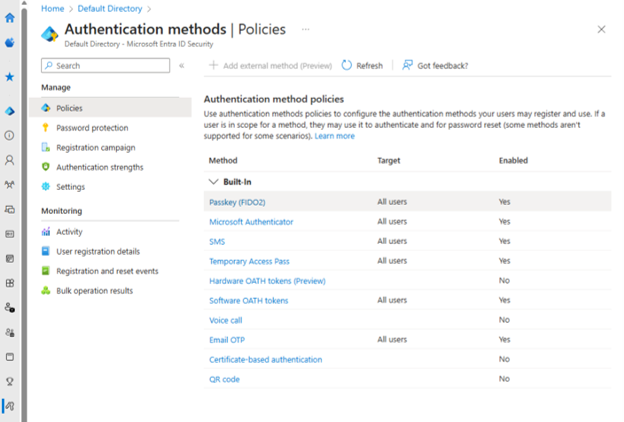
    • Enable passwordless authentication methods in Microsoft Entra ID.
    • Add the registry value on the server running Entra Connect Sync as described below.

    Turn on passwordless authentication for Microsoft Entra Connect Sync

    To make passwordless sign-in available in the installation wizard, install Microsoft Entra Connect Sync and set a registry key.

    1. Install Microsoft Entra Connect Sync. For installation steps, see Get started with Microsoft Entra Connect Sync by using express settings.
    2. On the server, open PowerShell and run the following command to enable passwordless:

    Enable passwordless authentication

    ###Enable passwordless authentication###
    New-ItemProperty -Path "HKLM:\SOFTWARE\Microsoft\Azure AD Connect" -Name "EnablePasswordlessAuth" -Value 1 -PropertyType DWORD -Force

    Disable passwordless authentication

    If you by any chance decide that you need to turn off passwordless authentication and return to signing in with a username and password, set the registry value to 0.

    Conclusion

    A quick change to make your passwordless journey a bit more complete. for more information please check Microsoft Learn page about the topic.